Google Docs resume templates let you build a resume directly in your browser, using a format most hiring teams already recognize. This guide covers how to open, edit, and download a Google Docs resume template, plus four style options you can start from right now, with no account wall blocking the download.
Most guides to Google Docs resume templates stop at “here’s a gallery, pick one.” That’s useful, but it skips the part people actually get stuck on: how do you move from the template to a finished, downloadable resume without losing your formatting? This article covers both: the templates and the practical steps to use them.
How to Use a Resume Template with Google Docs
Getting from a blank template to a finished resume takes four steps. None of them require special software.
- Open the template. Click a template link below, or go to Google Docs, select File, then New, then “From a template,” and search “resume.” A copy opens in your own Google Drive, so the original stays untouched.
- Edit each section directly. Click into any text block (name, summary, work history, skills) and type over the placeholder content. Google Docs saves your changes automatically as you go.
- Adjust the resume format for Google Docs. Keep section headers consistent, avoid splitting one section across two columns, and use a single font throughout. This keeps the layout clean whether it’s read on screen or printed.
- Download as PDF. Go to File, then Download, then “PDF Document (.pdf).” A PDF preserves your formatting and text layer, which matters if the resume passes through an applicant tracking system before a person sees it.
That’s the full loop: open, edit, format, download. None of it requires creating a new account beyond the free Google account most people already have for Gmail or Drive.
Where Most Google Docs Template Guides Fall Short
Resume.io currently ranks first for Google Docs resume templates in the India market (measured, July 2026). Their template gallery is functional. Two gaps stand out.
- In some flows, exporting a finished template first prompts an account or plan interaction. This adds friction for someone who just wants a free, editable file.
- The page shows templates but explains little about how to use them inside Google Docs. Should you make a copy, download the file, or use the shared link?
- That’s exactly what job seekers search for next, and it’s often left unanswered.
This guide closes that second gap directly. The numbered steps above walk through the real editing and export process, not just a gallery of thumbnails.
Templates by Style
Each of these starts from the same core idea: content organized the way an ATS resume expects to see it, with a real text layer once exported. Pick the one closest to your target industry, then follow the four steps above to make it yours.
- Simple / Clean: single-column layout, generous white space, best for early-career resumes and roles where clarity matters more than visual flair. Explore Templates: Simple style (/templates/google-docs#simple)
- ATS-Friendly: built around a single-column structure with clearly labeled section headers, designed to keep the text layer intact end to end. Explore Templates: ATS-friendly style (/templates/google-docs#ats-friendly)
- Professional / Traditional: a slightly more structured header and section spacing, suited to corporate and finance-adjacent roles. Explore Templates: Professional style (/templates/google-docs#professional)
- Modern / Minimal: subtle use of a secondary color for headers, still single-column underneath, suited to design-adjacent or startup roles. Explore Templates: Modern style (/templates/google-docs#modern)
JustCV vs. resume.io: Google Docs Template Access
| resume.io | JustCV | |
|---|---|---|
| Free to open and edit | Yes | Yes |
| Account required to download | In some flows, yes | No |
| Step-by-step how-to included on the page | Minimal | Full 4-step walkthrough (above) |
| Export format | Depends on workflow | PDF with selectable text |
| Cost to export a finished file | Paywalled in some flows | Free |
Comparison reflects resume.io’s publicly observable template-page behavior as of this writing; reconfirm before publishing if resume.io changes its flow, since Google Docs and third-party export flows do change periodically.
A Quick Formatting Checklist Before You Download
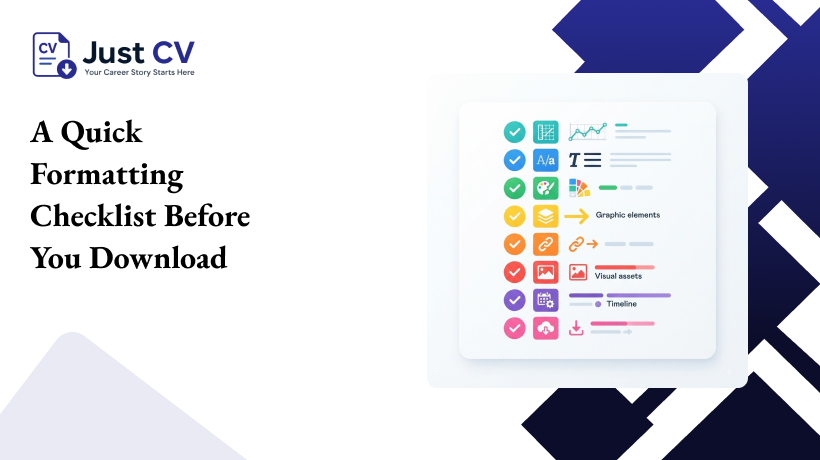
Run through this before hitting download. It catches the most common Google Docs resume templates mistakes:
☐ One font family used throughout the document
☐ Section headers are consistent in size and style
☐ No section content is split across two columns
☐ Contact information sits in the document body, not a header or footer
☐ Bullet points, not paragraphs, for work experience
☐ File downloaded as PDF, not left as a Google Docs link, before submitting
A Note on AI Assistance
If you’re using JustCV alongside a Google Docs resume template, the AI layer assists with drafting bullet points and suggesting phrasing. It doesn’t create your resume for you. You stay in control of every line, and every suggestion is something you can edit or skip.
Related Reading in the Resume Templates Cluster
- ATS-Friendly Resume Templates: What Really Gets Through the Filter (/blog/resume-templates/ats-friendly-resume-templates)
- Simple Resume Format: The Cleanest Layout That Still Passes ATS (/blog/resume-templates/simple-resume-format)
- Free Resume Templates to Download Today (PDF & Word) (/blog/resume-templates/free-resume-templates-pdf-word)
Frequently Asked Questions
See the full FAQ block below (Section 7) for AEO-formatted, standalone answers.
Your resume format for Google Docs doesn’t need to be complicated to work. It needs to be consistent, easy to edit, and easy to export. Once you’ve picked a style and worked through the four steps above, you have a resume that’s ready to send, not just a template that’s ready to look at.
Explore Templates to see the full Google Docs resume template set, or start building a version JustCV can help you tailor as you go.
FAQs
Q1: Are these Google Docs resume templates actually free?
Yes. Every template listed here is free to open, edit, and download as a PDF. No account beyond a standard Google account is required, and no payment or trial sign-up is needed to export your finished resume.
Q2: Can I edit a Google Docs resume template without creating an account?
You need a free Google account to open and save changes to a Google Doc, since it lives in Google Drive. You do not need any separate paid account, trial, or subscription to edit or export the file.
Q3: Does a Google Docs resume template work on mobile?
Yes, through the Google Docs mobile app. Editing text and section content works well on a phone or tablet; for precise formatting checks, a larger screen is easier before final export.
Q4: How do I download my finished resume as a PDF from Google Docs?
Open the file, go to File, then Download, then choose “PDF Document (.pdf).” This keeps your formatting intact and produces a file most hiring systems and applicant tracking systems can read.
Q5: What’s the best resume format for Google Docs if I’m applying through an ATS?
A single-column layout with clearly labeled section headers, consistent fonts, and no content split across columns. Avoid tables or text boxes for core content, since some systems struggle to read them in order.
Q6: Is a Google Docs resume template the same as a Google Docs CV template?
In most English-speaking markets outside the US, “CV” and “resume” refer to the same one-to-two-page document for job applications. The templates on this page work for either term.
Q7: Can I switch templates after I’ve already started editing?
Yes. Open a new template and copy your section content over, or start fresh in the new template. Google Docs won’t merge formatting between two open templates automatically.
Note on FAQPage schema (current as of this session’s research): Google deprecated FAQ rich results in Google Search as of May 7, 2026. FAQPage markup no longer expands the SERP listing itself. The schema type and its required fields remain valid and published by Google, and structured, self-contained Q&A blocks like these still support extractability for AI answer engines (ChatGPT, Perplexity, AI Overviews, Claude), which is this article’s actual GEO/AEO goal per the brief. Keep the schema for that reason, not for an SERP snippet that no longer appears.
