A PDF is usually the safest way to export your resume because it locks in your layout and fonts across every device but only if it’s built from real, selectable text, not a scanned image. This guide covers why PDF works, how to export one cleanly, and how to confirm it opens correctly before you send it anywhere.
If you’ve ever built a resume that looked perfect on your screen and wondered whether it would look the same on a recruiter’s laptop or inside an applicant tracking system (ATS) -this article answers that exact question.
Why PDF Is Usually Safest
Word documents can shift. Fonts substitute, spacing moves, and a resume that looks clean on your computer can reflow into something messy on someone else’s device especially across different software versions or operating systems.
A PDF freezes the layout. What you see when you export it is what the recruiter sees when they open it, regardless of their device.
This matters more than it might seem, because most resumes today pass through some kind of screening software before a human ever opens them. According to Jobscan’s 2025 Applicant Tracking System Usage Report, 97.8% of Fortune 500 companies use a detectable ATS. A separate Jobscan survey of recruiters found that 99.7% of respondents use an ATS to filter candidates. Getting the file format right isn’t a minor detail it’s the first hurdle almost every application clears or doesn’t.
Here’s the part most guides skip: not all PDFs are built the same way. A PDF created from real, selectable text is very different from one made by scanning a printed document or saving it as a flat image. The first keeps your resume’s underlying text readable by both humans and software. The second is essentially a picture it looks like a resume, but there’s no text layer underneath for an ATS to read.
That distinction matters because most applicant tracking systems parse resumes by extracting text, not by “looking” at them the way a person does. A resume that’s technically a PDF but is really just an image can pass a human’s glance and still fail the system that decides whether a human ever sees it.
This is the gap that’s easy to miss when a page just says “export as PDF” without explaining what’s happening underneath. flowcv.com’s guide on this exact keyword, for example, assumes you already understand why PDF matters and moves straight to the how-to useful if you already know the difference between a text-based and an image-based PDF, less useful if you don’t. This guide starts one step earlier, on purpose.
In short: PDF is usually the right export choice, but the goal is a text-based PDF not just any file with a .pdf extension.
PDF vs. Word: A Quick Comparison
| PDF (text-based) | Word (.docx) | |
|---|---|---|
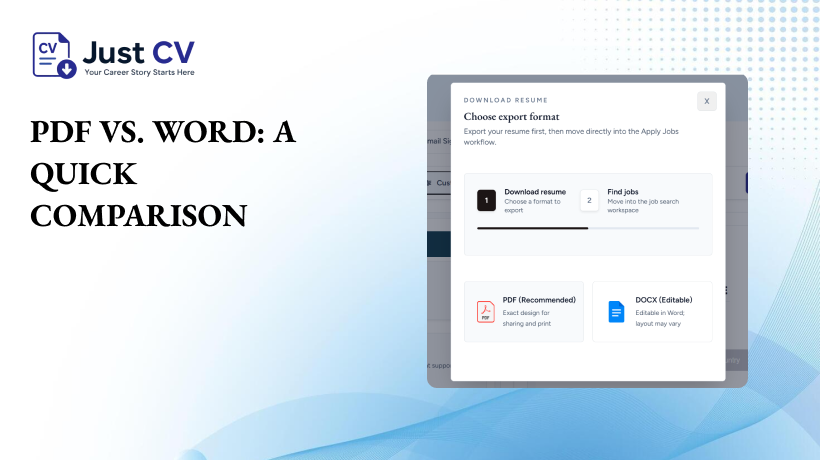
| Layout consistency across devices | High – fonts and spacing stay fixed | Variable – can shift by software version or OS |
| ATS readability | Good, if built from real text (not scanned) | Generally good, though heavily designed templates can confuse some parsers |
| Editable by the recipient | No, by design | Yes |
| Best used when | The job posting doesn’t specify a format, or asks for PDF | The job posting explicitly requests a Word file |
| Risk to watch for | Scanned or image-based PDFs are not machine-readable | Complex tables, columns, or text boxes can break parsing |
According to Jobscan’s guidance on common ATS formatting mistakes, the safest general approach is a single-column layout, standard section headings, and unless a job posting specifically asks for a Word file a clean PDF export.
How to Export Cleanly
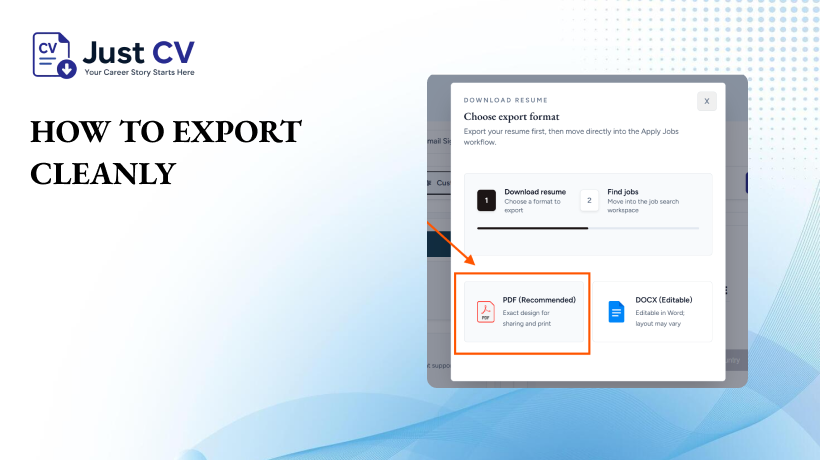
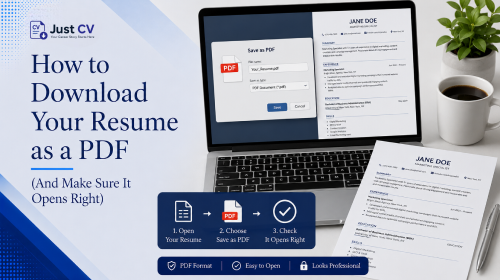
JustCV’s export flow follows three simple steps: Resume Editor → Preview → Download PDF. The Preview step matters – it’s your chance to confirm the layout looks right before the file is finalized, since exporting locks in the formatting.
The general steps are similar across most resume tools:
- Finish editing your resume in the builder or document editor first. It’s easier to fix wording and spacing before you export than after.
- Preview your resume before downloading. This is where formatting issues like an overflowing section or a font substitution are easiest to catch and fix.
- Once you’re satisfied with the preview, click “Download PDF.”
- Avoid “print to PDF” from a scanned image if you ever photograph or scan a printed resume, the resulting file is an image, not selectable text, even though it opens like a PDF.
- Open the exported file immediately and confirm the text looks right before you send it anywhere (more on this below).
- Rename the file clearly something like firstname-lastname-resume.pdf reads better to a human reviewer than download(3).pdf.
If you’re exporting from JustCV specifically, this flow keeps your chosen template’s layout intact and produces a text-based file automatically no separate scanning or flattening step involved.
Checking It Opens Right
This step takes under a minute and is the one most guides skip entirely.
PDF Export Checklist
☐ Open the exported PDF on a different device than the one you built it on, if possible (phone, another computer, or a friend’s laptop).
☐ Try selecting a line of text with your cursor. If you can highlight and copy it, the PDF is text-based good. If nothing highlights, it may be an image-based file.
☐ Check that fonts render as expected no boxes, missing characters, or substituted fonts.
☐ Confirm spacing and section breaks look the same as they did in the Preview step.
☐ Check the file size – a well-built resume PDF is typically a few hundred kilobytes, not several megabytes. A very large file can be a sign it was exported as a flattened image rather than text.
☐ Open it in more than one PDF viewer if you can (a browser tab and a dedicated PDF app), since rendering can occasionally differ slightly between them.
If your resume passes that checklist, it’s ready to submit – to a job board, an ATS, or a direct email attachment.
Whether you’re applying to your first role, returning to work after time away, changing industries, or building on freelance experience, this export step is the same for everyone: the goal is a clean, text-based file that opens exactly the way you built it. That’s the whole point of using resume templates in PDF format in the first place a layout you control, that stays the same wherever it lands.
If you’d like your resume exported this way automatically, you can [Download PDF] once your resume is ready in JustCV’s Preview screen – no separate conversion step needed.
FAQs
Should I save my resume as PDF or Word?
PDF is usually the safer default because it preserves your layout and fonts across devices. Use Word only if a job posting specifically asks for a .docx file some employers request Word so they can edit or annotate it internally.
Why won’t my resume PDF open correctly?
This is often a font-embedding issue, where the PDF references a font the viewer’s device doesn’t have, or the file was exported as a flattened image rather than text. Re-exporting from the original editor, rather than a scan or screenshot, usually resolves it.
Can an ATS read a PDF resume?
Yes, if the PDF is text-based. Most modern applicant tracking systems can extract text from a properly exported PDF. The risk is specifically with scanned or image-based PDFs, which have no extractable text layer.
How do I know if my PDF is text-based or just an image?
Try selecting a line of text with your cursor in the PDF viewer. If you can highlight and copy it, it’s text-based. If nothing selects, it’s likely an image.
Is it okay to convert a Word resume to PDF?
Yes. this is one of the most reliable ways to get a clean, text-based PDF, since the export process carries the underlying text along with the layout.
What file name should I use for my resume PDF?
A clear, simple name like firstname-lastname-resume.pdf is easiest for a recruiter to identify, especially if they’re managing many applications at once.
Does JustCV export resumes as text-based PDFs automatically?
Yes.JustCV’s Resume Editor → Preview → Download PDF flow produces a text-based PDF by default, preserving your template’s layout without a separate scanning or flattening step.